

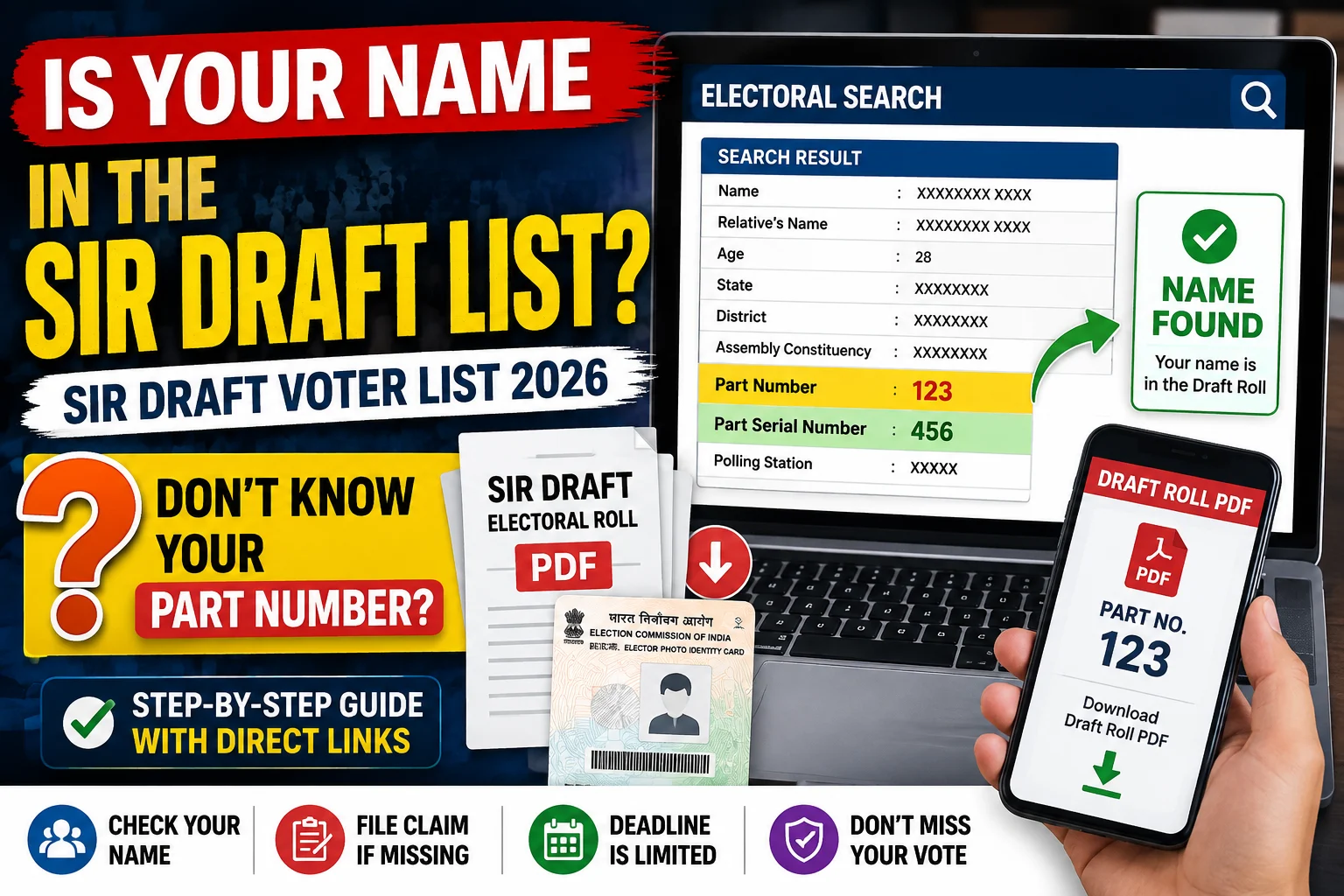
The Election Commission of India (ECI) has released the SIR Draft Electoral Roll 2026 for state after state as part of the ongoing Special Intensive Revision (SIR) exercise. If you’re trying to check whether your name made it into the draft list, you’ve probably already run into the biggest roadblock: the official download page asks for a Part Number, and most voters have no idea what that is or where to find it.
This guide covers everything that actually matters first — why you need to check, what to do if your name is found, and what to do if it’s not — and then walks you through the exact links and steps to do the check yourself.
Why You Must Check the SIR Draft Roll
The draft roll is not final — it’s a checkpoint stage. Names can be missing or wrong in the draft because:
- The Enumeration Form wasn’t filled or submitted on time
- A spelling or data-entry error happened at the Booth Level Officer (BLO) stage
- Duplicate entries were flagged and removed during verification
- The voter was marked “shifted,” “deceased,” or “not traceable” during door-to-door checks
If you don’t catch and correct this during the claims and objections window, you risk being left out of the final electoral roll, which means you won’t be able to vote. This check takes five minutes and can save a lot of trouble later — do it for yourself and for every family member, not just once.
If Your Name IS Found in the Draft Roll
If you locate your entry and everything looks right, here’s what to do next:
- Save or screenshot the page/PDF entry for your own records.
- Double-check the spelling of your name and your relative’s name — even a one-letter mismatch can cause problems at the final roll stage.
- If there’s a small error (spelling, age, address), you can still file a correction request during the claims and objections period — being “found” doesn’t mean you can’t fix mistakes.
- Note your state’s final roll publication date and re-check once it’s out, to confirm your entry carried over correctly.
If Your Name Is NOT Found in the Draft Roll
If you search and your name is missing entirely, or the details don’t match you:
- Don’t panic — this is exactly what the claims and objections period exists for.
- Visit your nearest Booth Level Officer (BLO) or the Electoral Registration Officer (ERO) for your constituency.
- File the relevant claim form (commonly Form 6 for new inclusion, or the applicable correction form as guided by the BLO/ERO) for your specific issue.
- Carry supporting documents — proof of age, address, and identity (Aadhaar, old EPIC card, etc.).
- Submit your claim before the deadline announced for your state — these windows are typically short, so act quickly.
- Re-check your status once the final roll or a supplementary list is published, using the same Electoral Search process explained below.
You can also raise an objection if a family member’s name is wrongly missing, duplicated, or if a deceased person is still listed.
Now here’s exactly how to actually do the check, step by step.
Step 1 Find Your Part Number, Part Name & Part Serial Number
This is the step almost everyone gets stuck on, because you cannot download the correct draft roll PDF without first knowing your Part Number. Here’s exactly how to find it, using the official ECI Electoral Search tool:
Direct link: electoralsearch.eci.gov.in/uesfmempmlkypo
Steps:
- Open the link above.
- Click on the tab “Search by Details” (the middle tab, next to Search by EPIC and Search by Mobile).
- Select your State and your preferred Language from the dropdowns.
- Under Personal Details, fill in:
- Name
- Relative’s Name (father’s/husband’s/mother’s name, as applicable)
- Age or Date of Birth
- Gender
- Under Location Details, select your District and Assembly Constituency.
- Enter the Captcha Code exactly as shown in the box (it’s case-sensitive, type it carefully) and click SEARCH.
If your record exists in the system, you’ll get a results table showing your Epic Number, Name, Age, Relative’s Name, State, District, Assembly Constituency, Part, Polling Station, and — the number you actually need — the Part Serial Number.
Note down two things from this result:
- Your Part Number
- Your Part Serial Number
You’ll use the Part Number in Step 2, and the Part Serial Number in Step 3 to instantly locate your entry inside the PDF instead of scrolling through hundreds of names.
Tip: If the search shows multiple similar names, use age + relative’s name together to pinpoint the exact match. You can also click “View Details” on any row to confirm the polling station and address before proceeding.
Step 2 Download the SIR Draft Roll PDF for Your Part
Now that you know your Part Number, go to the official ECI download portal:
Direct link: voters.eci.gov.in/download-eroll
Steps:
- Open the link above. This opens the Citizen Service Portal (ECINET) — Electoral Roll page.
- Select your State.
- Select Year of Revision as 2026.
- In Roll Type, choose SIR DraftRoll – 2026.
- Select your District.
- Select your Assembly Constituency.
- Select your Language.
- A list of all Parts in that constituency will load, showing the Part No. and Part Name for each polling area. Scroll or use the Search box to find your exact Part Number (the one you noted in Step 1).
- Tick the checkbox next to your Part.
- Enter the Captcha shown and click Download Selected PDFs.
Step 3 Search the PDF the Fast Way (Using Part Serial Number)
Once the PDF opens, don’t scroll through the whole document — large parts can have 500–1000+ names. Instead:
- Open the PDF and use Ctrl+F (or your PDF viewer’s search) if the file is text-searchable, or scroll directly to the entry matching your Part Serial Number noted in Step 1.
- Each entry block in the PDF is numbered by its Part Serial Number, followed by the voter’s Name, Father’s/Relative’s Name, House Number, Age, and Gender, and the EPIC Number.
- Match the Part Serial Number exactly — this takes you straight to your entry instead of searching by name (which can be slow if there are similar names in the same part).
- Confirm that the name spelling, relative’s name, age, gender, and address are all correct. This is where you find out whether your case falls under “Found” or “Not Found” above — and now you know exactly what to do either way.
Common Problems and Fixes
Problem: The PDF doesn’t download on the first click. Fix: This is very common on the official portal, especially right after a state’s draft roll is released and traffic spikes. Refresh the captcha and try again — it usually goes through within 2–3 attempts. Avoid selecting too many Parts at once; download one Part at a time for a faster, more reliable download.
Problem: I don’t know my Part Number. Fix: Always start with the Electoral Search tool (Step 1) — it tells you the exact Part Number, Part Name, and Part Serial Number before you go to the download portal.
Problem: Captcha is hard to read. Fix: Use the refresh icon next to the captcha to generate a new one, or use the audio/speaker icon for an audio captcha if you’re struggling to read it visually.
Problem: Too many results with similar names in Electoral Search. Fix: Add Age and Relative’s Name together — this narrows results down to the exact match almost every time.
Quick Recap Table
| Step | What to Do | Direct Link |
|---|---|---|
| 1 | Find your Part No., Part Name & Part Serial No. | electoralsearch.eci.gov.in/uesfmempmlkypo |
| 2 | Select State, Year 2026, Roll Type “SIR DraftRoll – 2026,” tick your Part, download | voters.eci.gov.in/download-eroll |
| 3 | Open the PDF, jump to your Part Serial No. | — |
| 4 | Found → verify details, fix minor errors if any | — |
| 5 | Not found → file a claim with your local BLO/ERO before the deadline | Local ERO/BLO office |
Frequently Asked Questions
Is the SIR Draft Voter List the same as the Final Voter List? No. The draft roll is a provisional list open to claims and objections. The final electoral roll is published only after that window closes.
Why won’t the draft roll PDF download the first time? Heavy traffic on the ECI portal right after a state’s draft roll release is the most common cause. Refresh the captcha and retry — it typically works within a few attempts.
I don’t know my Part Number — can I still download the PDF? Not directly. You need the Part Number to select the right file on the download portal. Use the Electoral Search link in Step 1 first to find it.
What happens if I miss the claims and objections deadline? If your name is missing from the draft and you miss the deadline for your state, you risk being left out of the final electoral roll for that revision cycle. Act as soon as you notice an issue.
Can I check names for family members too? Yes. Repeat Step 1 individually for each family member using their name, relative’s name, age, and constituency details — each person will have their own Part Serial Number.
Is the Part Serial Number the same as the EPIC Number? No. The EPIC Number is your permanent voter ID number. The Part Serial Number is the position/entry number of your name within that specific Part’s electoral roll — it’s what lets you jump straight to your entry inside the PDF.
Disclaimer
This guide is written for general informational purposes to help voters understand and navigate the SIR Draft Electoral Roll process more easily. It is an independent, unofficial resource and is not published by, endorsed by, or affiliated with the Election Commission of India (ECI) or any government office. Screenshots used are for illustration of the process only. For the latest updates, deadlines, and state-specific instructions, always refer to the official ECI portals — electoralsearch.eci.gov.in and voters.eci.gov.in/download-eroll — and your state’s Chief Electoral Officer (CEO) website.